カテゴリー: 技術系memo

  • Magento 2.3.5で初期セットアップに繰り返したら、LogicExceptionエラーになった

    Magento 2.3.5で、ウェブ上から初期セットアップを行って、インストールの部分で躓く。いろいろと対処をしていく中で、何回も行っていたのだが、突然、成功していたインストールの部分(というか最初)で、エラーが出るようになってしまった。

    Unknown module in the requested list: 'Magento_CatalogRuleSampleData'
    [ERROR] exception 'LogicException' with message 'Unknown module in the requested list: 'Magento_BundleSampleData'' in setup\src\Magento\Setup\Model\Installer.php:403
    Stack trace:

    原因は、ブラウザのキャッシュだった。キャッシュをクリアしたところ、正常な動作(というか、もともとの別の場所で躓く)に戻った。なかなか、Magento2のインストールは大変。

  • Magento2.3.5のインストール後に管理ページが404エラーになる

    Ubuntuに、Magento 2.3.5をインストールした後に、管理ページにアクセスしたところ、ページが404エラーになった。他にも、いくつかのページが404エラーになった。

    原因は、Apacheのmod_rewriteの設定がMagentoのディレクトリで有効になっていないからだった。

    Apacheには、mod_rewriteを入れているし、読み込ませてもいるが、肝心のMagentoのディレクトリで使うように設定されていなかったのが原因。

    • .htaccess がMagentoのフォルダになかった
    • apache.confで、.htaccessによる設定の上書きができないようになっていた

    対処としては、後述の参考ページの設定をいれただけだ。

    まずMagentoのインストールディレクトリに下記の .htaccessを保存する。

    ###############################################
    ## overrides deployment configuration mode value
    ## use command bin/magento deploy:mode:set to switch modes
    #   SetEnv MAGE_MODE developer
    ############################################
    ## uncomment these lines for CGI mode
    ## make sure to specify the correct cgi php binary file name
    ## it might be /cgi-bin/php-cgi
    #    Action php5-cgi /cgi-bin/php5-cgi
    #    AddHandler php5-cgi .php
    ############################################
    ## GoDaddy specific options
    #   Options -MultiViews
    ## you might also need to add this line to php.ini
    ##     cgi.fix_pathinfo = 1
    ## if it still doesn't work, rename php.ini to php5.ini
    ############################################
    ## this line is specific for 1and1 hosting
        #AddType x-mapp-php5 .php
        #AddHandler x-mapp-php5 .php
    ############################################
    ## default index file
        DirectoryIndex index.php
    <IfModule mod_php5.c>
    ############################################
    ## adjust memory limit
        php_value memory_limit 768M
        php_value max_execution_time 18000
    ############################################
    ## disable automatic session start
    ## before autoload was initialized
        php_flag session.auto_start off
    ############################################
    ## enable resulting html compression
        #php_flag zlib.output_compression on
    ###########################################
    ## disable user agent verification to not break multiple image upload
        php_flag suhosin.session.cryptua off
    </IfModule>
    <IfModule mod_php7.c>
    ############################################
    ## adjust memory limit
        php_value memory_limit 768M
        php_value max_execution_time 18000
    ############################################
    ## disable automatic session start
    ## before autoload was initialized
        php_flag session.auto_start off
    ############################################
    ## enable resulting html compression
        #php_flag zlib.output_compression on
    ###########################################
    ## disable user agent verification to not break multiple image upload
        php_flag suhosin.session.cryptua off
    </IfModule>
    <IfModule mod_security.c>
    ###########################################
    ## disable POST processing to not break multiple image upload
        SecFilterEngine Off
        SecFilterScanPOST Off
    </IfModule>
    <IfModule mod_deflate.c>
    ############################################
    ## enable apache served files compression
    ## http://developer.yahoo.com/performance/rules.html#gzip
        # Insert filter on all content
        ###SetOutputFilter DEFLATE
        # Insert filter on selected content types only
        #AddOutputFilterByType DEFLATE text/html text/plain text/xml text/css text/javascript
        # Netscape 4.x has some problems...
        #BrowserMatch ^Mozilla/4 gzip-only-text/html
        # Netscape 4.06-4.08 have some more problems
        #BrowserMatch ^Mozilla/4\.0[678] no-gzip
        # MSIE masquerades as Netscape, but it is fine
        #BrowserMatch \bMSIE !no-gzip !gzip-only-text/html
        # Don't compress images
        #SetEnvIfNoCase Request_URI \.(?:gif|jpe?g|png)$ no-gzip dont-vary
        # Make sure proxies don't deliver the wrong content
        #Header append Vary User-Agent env=!dont-vary
    </IfModule>
    <IfModule mod_ssl.c>
    ############################################
    ## make HTTPS env vars available for CGI mode
        SSLOptions StdEnvVars
    </IfModule>
    ############################################
    ## workaround for Apache 2.4.6 CentOS build when working via ProxyPassMatch with HHVM (or any other)
    ## Please, set it on virtual host configuration level
    ##    SetEnvIf Authorization "(.*)" HTTP_AUTHORIZATION=$1
    ############################################
    <IfModule mod_rewrite.c>
    ############################################
    ## enable rewrites
        Options +FollowSymLinks
        RewriteEngine on
    ############################################
    ## you can put here your magento root folder
    ## path relative to web root
        #RewriteBase /magento/
    ############################################
    ## workaround for HTTP authorization
    ## in CGI environment
        RewriteRule .* - [E=HTTP_AUTHORIZATION:%{HTTP:Authorization}]
    ############################################
    ## TRACE and TRACK HTTP methods disabled to prevent XSS attacks
        RewriteCond %{REQUEST_METHOD} ^TRAC[EK]
        RewriteRule .* - [L,R=405]
    ############################################
    ## redirect for mobile user agents
        #RewriteCond %{REQUEST_URI} !^/mobiledirectoryhere/.*$
        #RewriteCond %{HTTP_USER_AGENT} "android|blackberry|ipad|iphone|ipod|iemobile|opera mobile|palmos|webos|googlebot-mobile" [NC]
        #RewriteRule ^(.*)$ /mobiledirectoryhere/ [L,R=302]
    ############################################
    ## never rewrite for existing files, directories and links
        RewriteCond %{REQUEST_FILENAME} !-f
        RewriteCond %{REQUEST_FILENAME} !-d
        RewriteCond %{REQUEST_FILENAME} !-l
    ############################################
    ## rewrite everything else to index.php
        RewriteRule .* index.php [L]
    </IfModule>
    ############################################
    ## Prevent character encoding issues from server overrides
    ## If you still have problems, use the second line instead
        AddDefaultCharset Off
        #AddDefaultCharset UTF-8
    <IfModule mod_expires.c>
    ############################################
    ## Add default Expires header
    ## http://developer.yahoo.com/performance/rules.html#expires
        ExpiresDefault "access plus 1 year"
        ExpiresByType text/html A0
        ExpiresByType text/plain A0
    </IfModule>
    ###########################################
    ## Deny access to root files to hide sensitive application information
        RedirectMatch 404 /\.git
        <Files composer.json>
            order allow,deny
            deny from all
        </Files>
        <Files composer.lock>
            order allow,deny
            deny from all
        </Files>
        <Files .gitignore>
            order allow,deny
            deny from all
        </Files>
        <Files .htaccess>
            order allow,deny
            deny from all
        </Files>
        <Files .htaccess.sample>
            order allow,deny
            deny from all
        </Files>
        <Files .php_cs>
            order allow,deny
            deny from all
        </Files>
        <Files .travis.yml>
            order allow,deny
            deny from all
        </Files>
        <Files CHANGELOG.md>
            order allow,deny
            deny from all
        </Files>
        <Files CONTRIBUTING.md>
            order allow,deny
            deny from all
        </Files>
        <Files CONTRIBUTOR_LICENSE_AGREEMENT.html>
            order allow,deny
            deny from all
        </Files>
        <Files COPYING.txt>
            order allow,deny
            deny from all
        </Files>
        <Files Gruntfile.js>
            order allow,deny
            deny from all
        </Files>
        <Files LICENSE.txt>
            order allow,deny
            deny from all
        </Files>
        <Files LICENSE_AFL.txt>
            order allow,deny
            deny from all
        </Files>
        <Files nginx.conf.sample>
            order allow,deny
            deny from all
        </Files>
        <Files package.json>
            order allow,deny
            deny from all
        </Files>
        <Files php.ini.sample>
            order allow,deny
            deny from all
        </Files>
        <Files README.md>
            order allow,deny
            deny from all
        </Files>
    ################################
    ## If running in cluster environment, uncomment this
    ## http://developer.yahoo.com/performance/rules.html#etags
        #FileETag none
    ############################################
    ## Add custom headers
    <IfModule mod_headers.c>
        Header set X-Content-Type-Options "nosniff"
        Header set X-XSS-Protection "1; mode=block"
    </IfModule>

    次に、/etc/apache/の中のconfファイル(vhosts.confやapache.confなどから適切なものを書き換え)に下記を追加する。ディレクトリは、Magentoをインストールしたディレクトリに変える。

    <Directory /var/www/html>
                Options Indexes FollowSymLinks MultiViews
                AllowOverride All
                allow from all
     </Directory>

    最後に、Apacheの再起動を行う。

    参考: https://qastack.jp/magento/89125/how-to-fix-magento-2-2-0-0-rc-admin-page-not-found-after-installation

  • VS2008のアプリをVS2019で開いて、デバック実行したら「Assembly.csが見つかりません」が表示された

    VS2008のアプリをVS2019で開いて、デバック実行したら「Assembly.csが見つかりません」が表示された。「Assembly.cs」を探したが見つからず。元のプロジェクトはVB.NETで書かれている。

    VS2019上には、逆コンパイルで作成も選択できたので、実行してみたが失敗した。

    失敗したので、今度は、Assenbly情報を再作成した。

    1. ソリューションエクスプローラーでプロジェクトを選び、右クリックからプロパティを開く。
    2. 「アプリケーション」を選択する。
    3. 「アセンブリ情報(Y)」をクリックする。
    4. ウィンドウが立ち上がるので、確認してOKをクリックする(なにも変更しなくてもよい)
    5. プロジェクトのリビルドを行う。
    6. デバック実行して、同じエラーにならないかを確認する。

    これでエラーが出なくなった。

  • VS2008のソリューションをVS2019に変更したら、Request.ServerVariables(“LOGON_USER”)で値がとれなくなったら

    Visual Studio 2008のソリューションを、Visual Studio 2019の形式に変換した。.NET Frameworkも3.5から4.8に変更した。Visual Studio 2019でデバック実行したところ、ログインユーザの値が「Request.ServerVariables(“LOGON_USER”)」でとれなくなった。

    言語のバージョンか、.NET Frameworkのバージョン違いか、調べたが、ちゃんと残っていた。

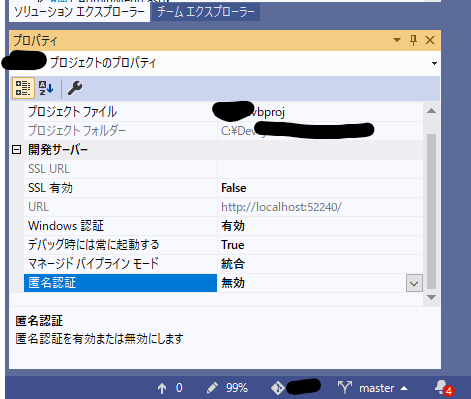
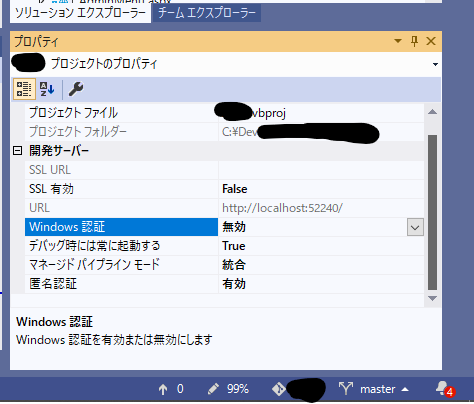
    変わっていたのは、Visual Studio 2019上での開発サーバー(IIS)の設定値だった。プロジェクトのプロパティを開いたところ、開発サーバーの設定があり、そこの設定では、「Windows認証」が無効で、「匿名認証」が有効になっていた。これだと、LOGONしたことになっていないので、「LOGON_USER」の値は、空になる。

    開発サーバーの設定を、「Windows 認証」を有効にし、「匿名認証」を無効にした。その後、デバック実行して確認したところ、正常にログオンユーザが取れた。

  • GitLab CEのデフォルトのブランチ名を変える

    GitLabo CEでデフォルト設定を変えないと、プロジェクトを作った時のGitリポジトリのイニシャルブランチ名が「master」のままになってしまう。SVNなどから移行するときに、ブランチ名が「Main」だと別ブランチになってしまうので、今後に備えて、デフォルトのブランチ名を変えておく。

    1. GitLaboの管理画面に入る
    2. 設定からリポジトリを選択する(Settings からRepositoriesを選択する)
    3. 「Default initial branch name」を展開する
    4. ブランチ名を入力して、変更を保存する
  • git svn initを実行したらエラーになった

    Windows10で、git svn initを実行して、SVNのリポジトリをGitのリポジトリに変換しようとしたところ、perlでエラーになった。

    C:\Users\hoge\Documents\SVN>git svn init -T http://svn.xenos.jp/svn/app1/Trunk/ -t http://svn.xenos.jp/svn/app1/Tags/ --username=hoge
    svn: E235000: In file 'subversion/bindings/swig/perl/libsvn_swig_perl/swigutil_pl.c' line 1666: assertion failed (get_current_pool_cb != NULL)
          1 [main] perl 1052 cygwin_exception::open_stackdumpfile: Dumping stack trace to perl.exe.stackdump
    C:\Users\hoge\Documents\SVN>
    C:\Users\hoge\Documents\SVN>git --version
    git version 2.27.0.windows.1
    C:\Users\hoge\Documents\SVN>
    

    バージョンを確認したら、新しいGitのバージョンが出ていたので、2.29.2にアップデートして、もう一度、試したら、成功した。

    参考: https://teratail.com/questions/266878

  • Google Cloud SQLでネットワーク接続制限を解除する

    Google Cloud SQLで、接続元のIPアドレスを固定できず、どこからでも接続できる設定にする。基本的にセキュリティがゆるゆるになるので、開発のときか、確認のための一時的な設定にした方がよい。

    1. GCPの管理画面で、Cloud SQLを開く。
    2. サイドメニュから「接続」を選択する。
    3. 接続の「パブリックIP」にチェックを入れる(もしくは入っていることを確認する)。
    4. 「+ネットワークを追加」をクリックする
    5. ネットワークに「0.0.0.0/0」を指定して、完了をクリックする。
    6. 次に「保存」をクリックする(保存しないとネットワークに反映されない)。

    これで、外部からCloud SQLのDBに接続できるようになる。

  • Magentoのインストールでハマったところ

    インストールのときの「Username」と「Password」がわからない。

    ubuntu@ip-172-31-45-120:/var/www/html$ sudo composer create-project --repository-url=https://repo.magento.com/ magento/project-community-edition /var/www/html/
    
    Do not run Composer as root/super user! See https://getcomposer.org/root for details
    Creating a "magento/project-community-edition" project at "./"
    Warning from repo.magento.com: You haven't provided your Magento authentication keys. For instructions, visit 
    https://devdocs.magento.com/guides/v2.3/install-gde/prereq/connect-auth.html
        Authentication required (repo.magento.com):
          Username:
          Password:
    Warning from repo.magento.com: You haven't provided your Magento authentication keys. For instructions, visit 
    https://devdocs.magento.com/guides/v2.3/install-gde/prereq/connect-auth.html
    Warning from repo.magento.com: You haven't provided your Magento authentication keys. For instructions, visit 
    https://devdocs.magento.com/guides/v2.3/install-gde/prereq/connect-auth.html
    Warning from repo.magento.com: You haven't provided your Magento authentication keys. For instructions, visit 
    https://devdocs.magento.com/guides/v2.3/install-gde/prereq/connect-auth.html
    
    In RemoteFilesystem.php line 746:
    
      Invalid credentials for 'https://repo.magento.com/packages.json', aborting.
    
    
    create-project [-s|--stability STABILITY] [--prefer-source] [--prefer-dist] [--repository REPOSITORY] [--repository-url REPOSITORY-URL] [--add-repository] [--dev] [--no-dev] [--no-custom-installers] [--no-scripts] [--no-progress] [--no-secure-http] [--keep-vcs] [--remove-vcs] [--no-install] [--ignore-platform-reqs] [--] [ [ 
    []]]
    
    ubuntu@ip-172-31-45-120:/var/www/html$
    

    この「Username」と「Password」は、MangentのMarketplaceで、「Create A New Access Key」で発行するAccess Keyがこれにあたり、Public KeyとPrivate Keyがユーザ名とパスワードにあたる。(いや、これ、わかりにくい)

    Username = Public Key
    Password = Private Key

    参考: https://qiita.com/yutahonaga/items/bfb09205ca16c20aa44d

  • Bitnami Redmineで3.4.6から4.1.1にアップグレード

    Bitnami Redmineで、Redmineの3.4.6を使っている。3.4系が古いので、Redmineの4.1.1にアップグレードにアップグレードしたときの作業を残す。基本的には、Bitnamiのドキュメントの流れでインストールはできた。インストーラーを普通に走らせるとパスなどは変わるので、そこらへんはアレンジしてる。

    ■参考
    https://docs.bitnami.com/general/apps/redmine/administration/upgrade/

    ■やったこと

    アップデート前の環境のDBのユーザ名とパスワードをファイルから抜く。対象のファイルは、下記。

    /opt/redmine-3.4.6-1/apps/redmine/htdocs/config/database.yml
    

    接続の確認をする

    /opt/redmine-3.4.6-1/mysql/bin/mysql -u bitnami -p
    

    データを保存するフォルダを作る

    mkdir data
    cd data
    

    mysqldumpでデータベースのデータを保存する

    /opt/redmine-3.4.6-1/mysql/bin/mysqldump bitnami -p --databases bitnami_redmine --add-drop-database < bitnami_redmine.sql
    

    Redmineのファイルを保存する

     tar czf redmine_files.tar.gz -C /opt/redmine-3.4.6-1/apps/redmine/htdocs/files .
    

    プラグインのファイルを保存する

    tar czf redmine_plugins.tar.gz -C /opt/redmine-3.4.6-1/apps/redmine/htdocs/plugins .

    現在の環境のbitnami redmineを停止する

    sudo /opt/redmine-3.4.6-1/ctlscript.sh stop
    

    新しいバージョンのbitnami redmineのインストーラを実行する。ウィザード形式なので、ウィザードにしたがって設定をする。

    sudo ./bitnami-redmine-4.1.1-5-linux-x64-installer.run
    

    インストールができたら、新しいRedmineが起動しているので、アクセスして、アクセスできることを確認する。

    アクセスができ(=インストールされている)ていれば、次にApacheを停止する

    sudo /opt/redmine-4.1.1-5/ctlscript.sh stop apache
    

    新しいデータベースの接続情報を確認する。下記のファイルに記載されている。

    /opt/redmine-4.1.1-5/apps/redmine/htdocs/config/database.yml

    旧環境のデータを保存したディレクトリに移動し、下記のコマンドで、データベースのデータを入れる。

    /opt/redmine-4.1.1-5/mysql/bin/mysql -u bitnami -p < ./bitnami_redmine.sql
    

    次に、データを展開する。プラグインを使っているようであれば、プラグインも同じように展開する。

    sudo tar xzf ./redmine_files.tar.gz -C /opt/redmine-4.1.1-5/apps/redmine/htdocs/files
    

    Productionログのパーミッションを一時的に変更する(後から戻す)。

    sudo chmod 666 /opt/redmine-4.1.1-5/apps/redmine/htdocs/log/production.log
    

    新しい環境のRedmineの実行環境のディレクトリに移動する

    cd /opt/redmine-4.1.1-5/apps/redmine/htdocs/
    

    次にDBのマイグレーションを実行する。

    sudo /opt/redmine-4.1.1-5/ruby/bin/ruby bin/rake db:migrate RAILS_ENV=production
    

    キャッシュをクリーンナップする

    sudo /opt/redmine-4.1.1-5/ruby/bin/ruby bin/rake tmp:clear

    Productionログの権限を元に戻す

    sudo chmod 644 /opt/redmine-4.1.1-5/apps/redmine/htdocs/log/production.log
    

    Apacheを起動する

    sudo /opt/redmine-4.1.1-5/ctlscript.sh start apache
    

    設定ファイルなどの変更が必要な場合には変更する。
  • WSL2でDockerを使えるようにインストールする

    メモとして。前提として、WSL2のインストールは終わっている。

    Docker Desktop for Windowsをダウンロードする。下記のURLにアクセスして、「Get Docker」からダウンロードする。

    https://hub.docker.com/editions/community/docker-ce-desktop-windows/

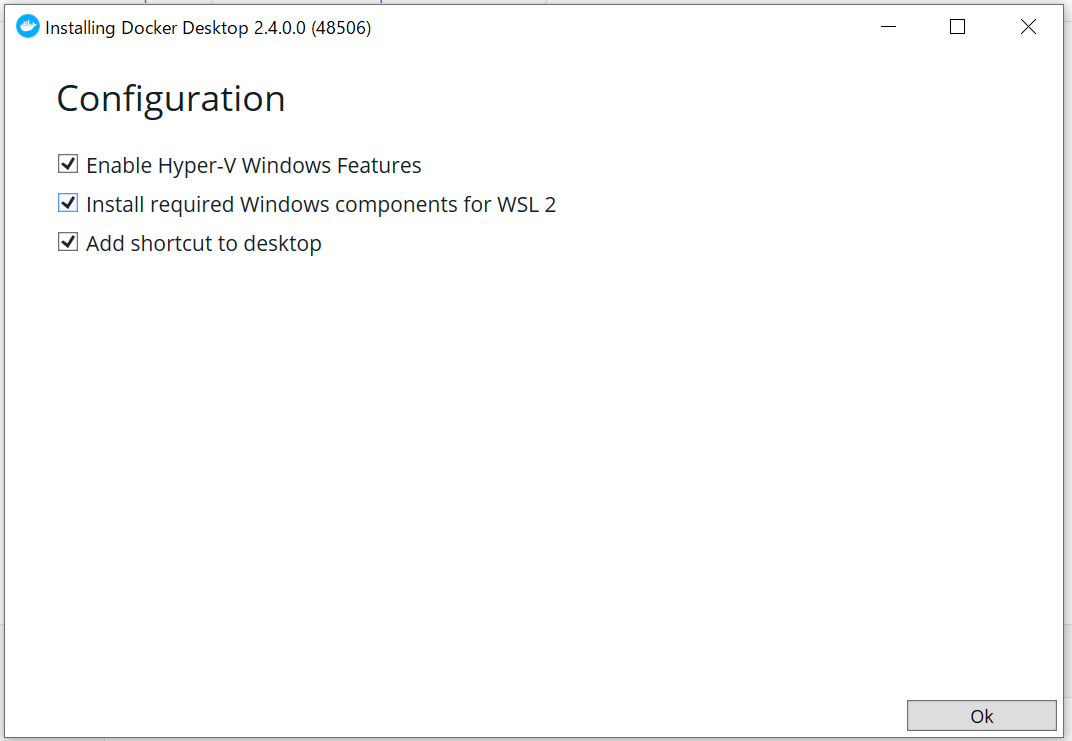
    ダウンロードしたインストーラー(EXEファイル)を実行する。インストールのときに、「Install required Windows components for WSL2」にチェックが入っているので、WSL2対応もばっちり。

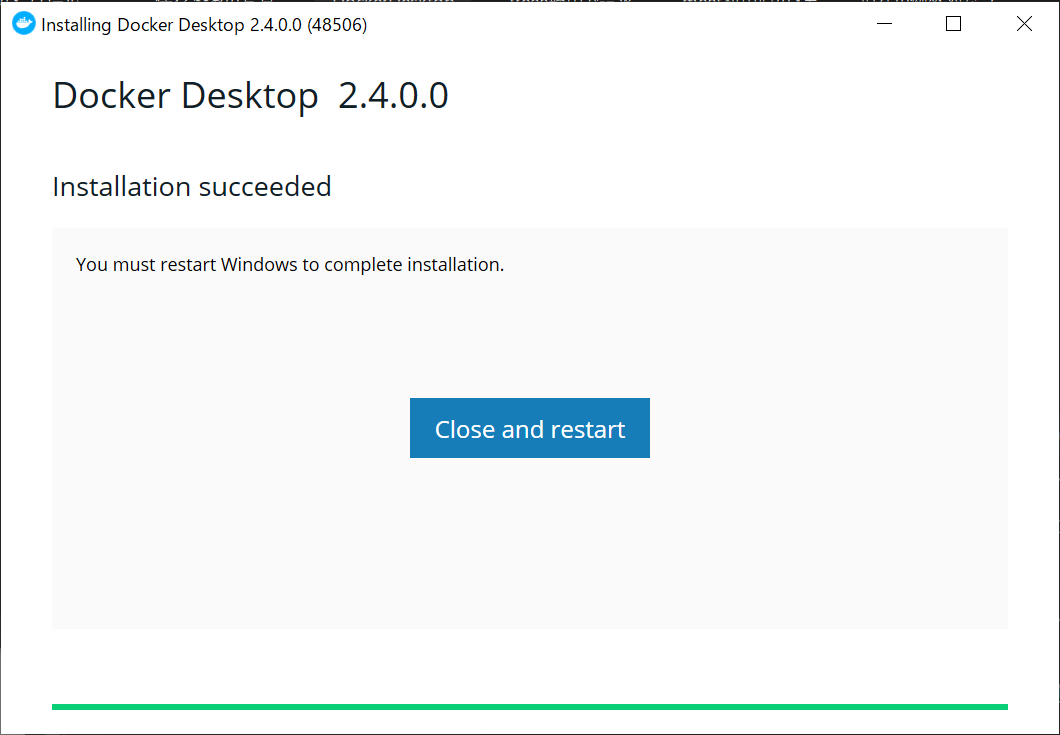
    インストールが終わったら、Windows10の再起動が入る。

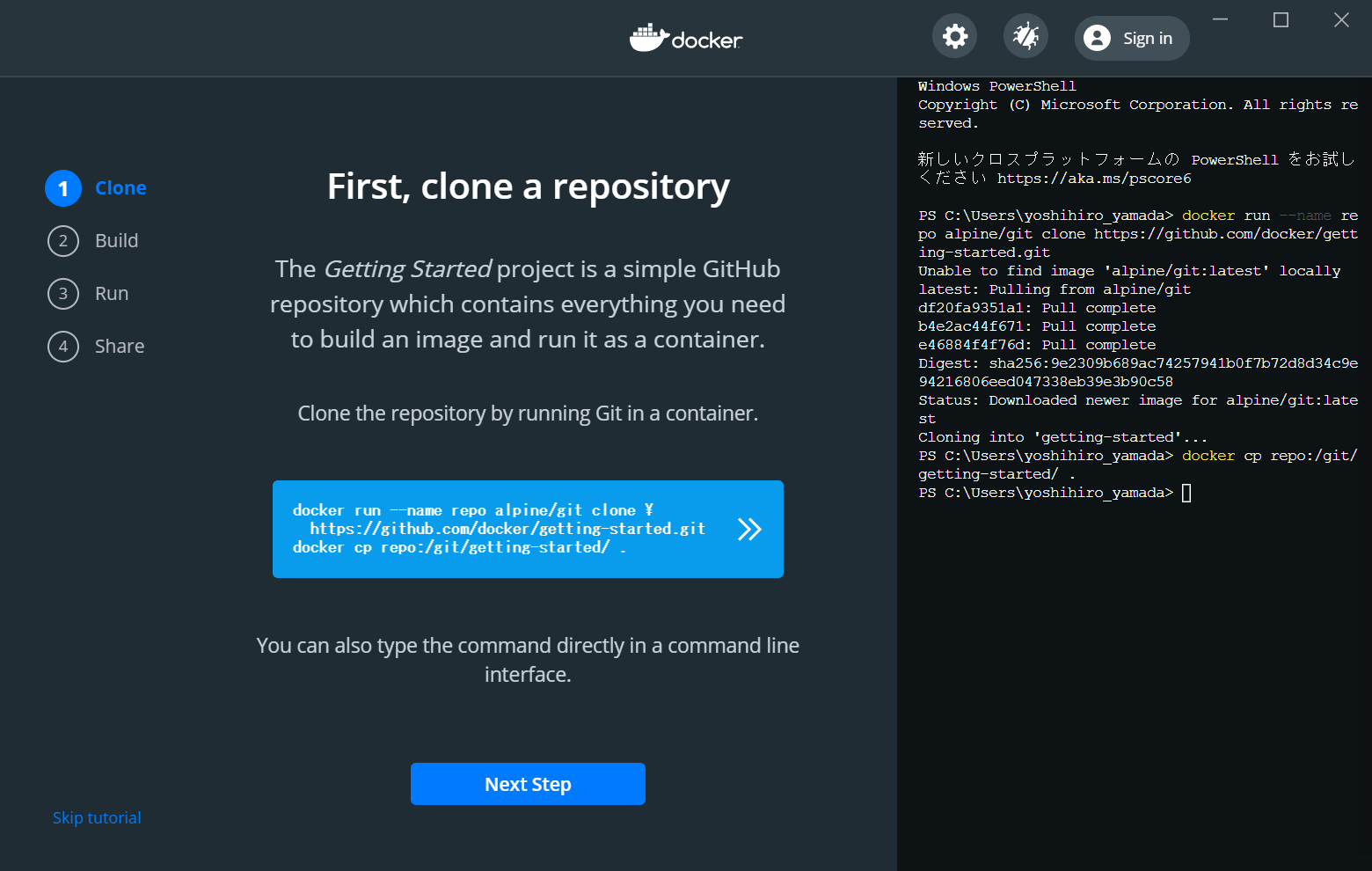
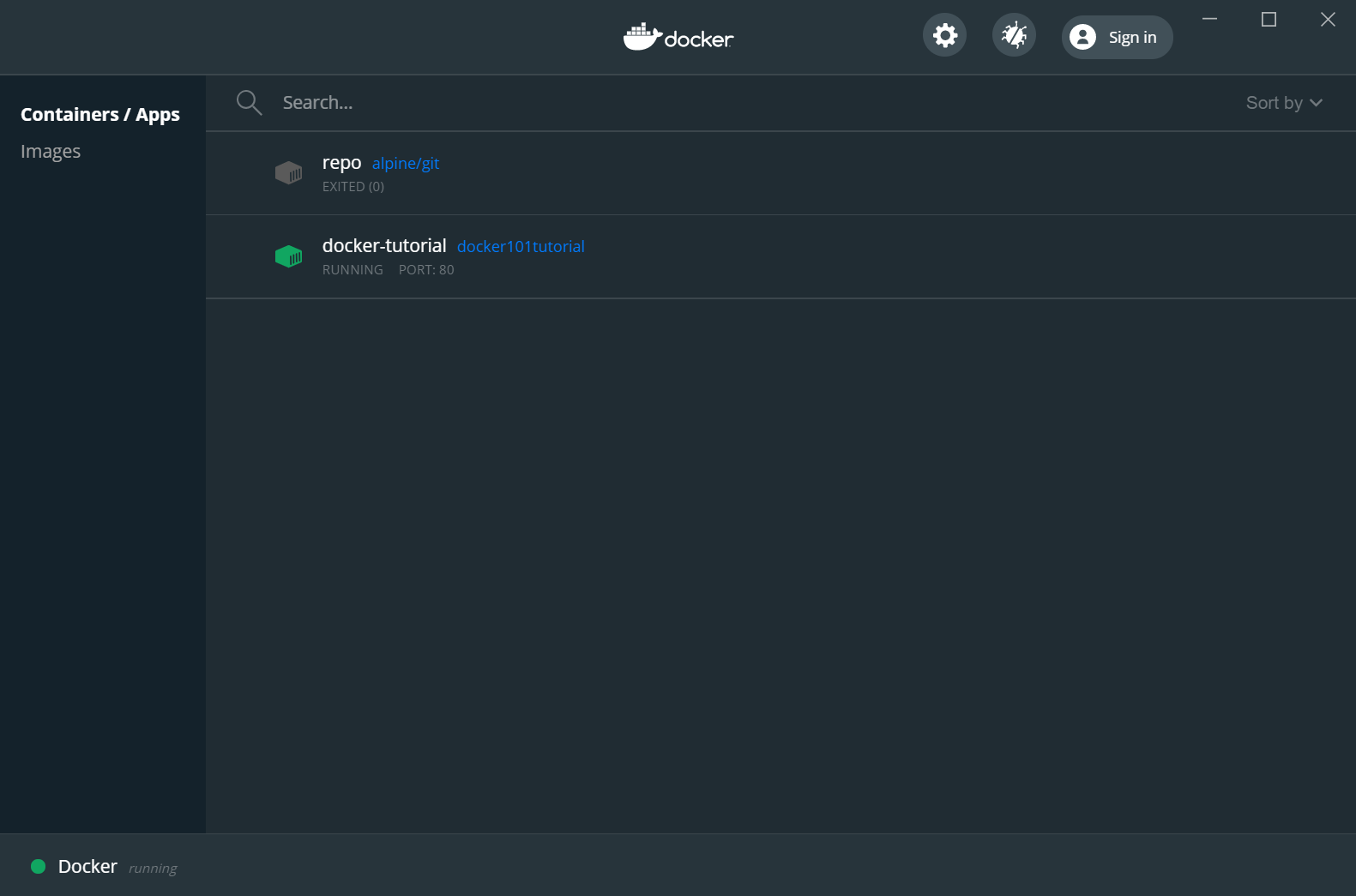
    で、なにをしたらいいのかわからないので、チュートリアルを実施。

    チュートリアルの通りにやったら、チュートリアルのコンテナが立ち上がった。

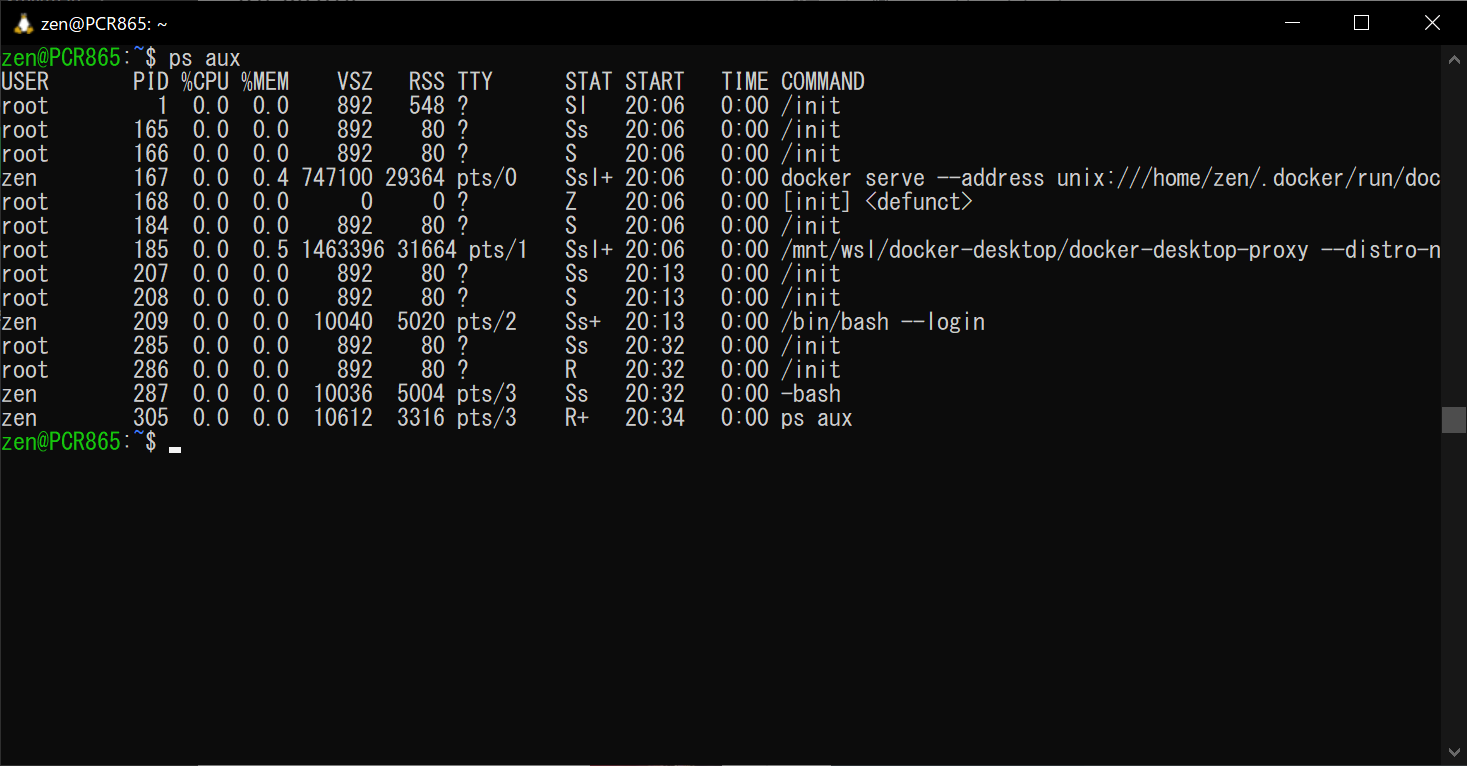
    このコンテナがどこで動いているのか気になって、WSL2のUbuntuでpsコマンドをたたいてみると、dockerに関連したプロセスが起動しているので、WSL2の上で動作していることが確認できた。

     root       185  0.0  0.5 1463396 31664 pts/1   Ssl+ 20:06   0:00 /mnt/wsl/docker-desktop/docker-desktop-proxy --distro-n