年: 2020年

  • 「孵化前のティラノサウルス類の化石を発見」とのこと

    あの大きな肉食恐竜のティラノサウルスの子供が小さな犬くらいのサイズで生まれていた可能性が高いとのこと。今回見つかった胚の化石は、ティラノサウルス類の初期のなかまみたいだ。いろいろと化石は見つかっているけれど、本当に恐竜は謎が多くて、不思議だ。博物館や恐竜展で見ると想像も難しいが、子供や卵の化石の発見が珍しいんだよね。特設展示や研究成果に目が向いてしまうので、地道なところが見えてこない。また、数年もしたら、いろいろと恐竜の生態(の想像図)も変わってくるのだろう。

    そのうち、今回の化石もどこかで展示されてみれる日が来るといいと思う。

    https://natgeo.nikkeibp.co.jp/atcl/news/20/102000615/?P=1

  • Crayon Syntax Highlighterが使えない

    WordPressとPHPをアップデートしていったところ、ずっと使っていた「Crayon Syntax Highlighter」が使えなくなってきた。いつからかは覚えていないが、今のPHP7.3では、変換してほしくない「<」やスペースを勝手に変換するようになった。

    最初は、修正していたけれど、だんだんとストレスがたまってきた。なので、プラグインを消した。長いことお世話になったけれど、ストレスがたまるのだから、諦める。別のものを探さなければ。

  • Bitnami Redmineで3.4.6から4.1.1にアップグレード

    Bitnami Redmineで、Redmineの3.4.6を使っている。3.4系が古いので、Redmineの4.1.1にアップグレードにアップグレードしたときの作業を残す。基本的には、Bitnamiのドキュメントの流れでインストールはできた。インストーラーを普通に走らせるとパスなどは変わるので、そこらへんはアレンジしてる。

    ■参考
    https://docs.bitnami.com/general/apps/redmine/administration/upgrade/

    ■やったこと

    アップデート前の環境のDBのユーザ名とパスワードをファイルから抜く。対象のファイルは、下記。

    /opt/redmine-3.4.6-1/apps/redmine/htdocs/config/database.yml
    

    接続の確認をする

    /opt/redmine-3.4.6-1/mysql/bin/mysql -u bitnami -p
    

    データを保存するフォルダを作る

    mkdir data
    cd data
    

    mysqldumpでデータベースのデータを保存する

    /opt/redmine-3.4.6-1/mysql/bin/mysqldump bitnami -p --databases bitnami_redmine --add-drop-database < bitnami_redmine.sql
    

    Redmineのファイルを保存する

     tar czf redmine_files.tar.gz -C /opt/redmine-3.4.6-1/apps/redmine/htdocs/files .
    

    プラグインのファイルを保存する

    tar czf redmine_plugins.tar.gz -C /opt/redmine-3.4.6-1/apps/redmine/htdocs/plugins .

    現在の環境のbitnami redmineを停止する

    sudo /opt/redmine-3.4.6-1/ctlscript.sh stop
    

    新しいバージョンのbitnami redmineのインストーラを実行する。ウィザード形式なので、ウィザードにしたがって設定をする。

    sudo ./bitnami-redmine-4.1.1-5-linux-x64-installer.run
    

    インストールができたら、新しいRedmineが起動しているので、アクセスして、アクセスできることを確認する。

    アクセスができ(=インストールされている)ていれば、次にApacheを停止する

    sudo /opt/redmine-4.1.1-5/ctlscript.sh stop apache
    

    新しいデータベースの接続情報を確認する。下記のファイルに記載されている。

    /opt/redmine-4.1.1-5/apps/redmine/htdocs/config/database.yml

    旧環境のデータを保存したディレクトリに移動し、下記のコマンドで、データベースのデータを入れる。

    /opt/redmine-4.1.1-5/mysql/bin/mysql -u bitnami -p < ./bitnami_redmine.sql
    

    次に、データを展開する。プラグインを使っているようであれば、プラグインも同じように展開する。

    sudo tar xzf ./redmine_files.tar.gz -C /opt/redmine-4.1.1-5/apps/redmine/htdocs/files
    

    Productionログのパーミッションを一時的に変更する(後から戻す)。

    sudo chmod 666 /opt/redmine-4.1.1-5/apps/redmine/htdocs/log/production.log
    

    新しい環境のRedmineの実行環境のディレクトリに移動する

    cd /opt/redmine-4.1.1-5/apps/redmine/htdocs/
    

    次にDBのマイグレーションを実行する。

    sudo /opt/redmine-4.1.1-5/ruby/bin/ruby bin/rake db:migrate RAILS_ENV=production
    

    キャッシュをクリーンナップする

    sudo /opt/redmine-4.1.1-5/ruby/bin/ruby bin/rake tmp:clear

    Productionログの権限を元に戻す

    sudo chmod 644 /opt/redmine-4.1.1-5/apps/redmine/htdocs/log/production.log
    

    Apacheを起動する

    sudo /opt/redmine-4.1.1-5/ctlscript.sh start apache
    

    設定ファイルなどの変更が必要な場合には変更する。
  • WSL2でDockerを使えるようにインストールする

    メモとして。前提として、WSL2のインストールは終わっている。

    Docker Desktop for Windowsをダウンロードする。下記のURLにアクセスして、「Get Docker」からダウンロードする。

    https://hub.docker.com/editions/community/docker-ce-desktop-windows/

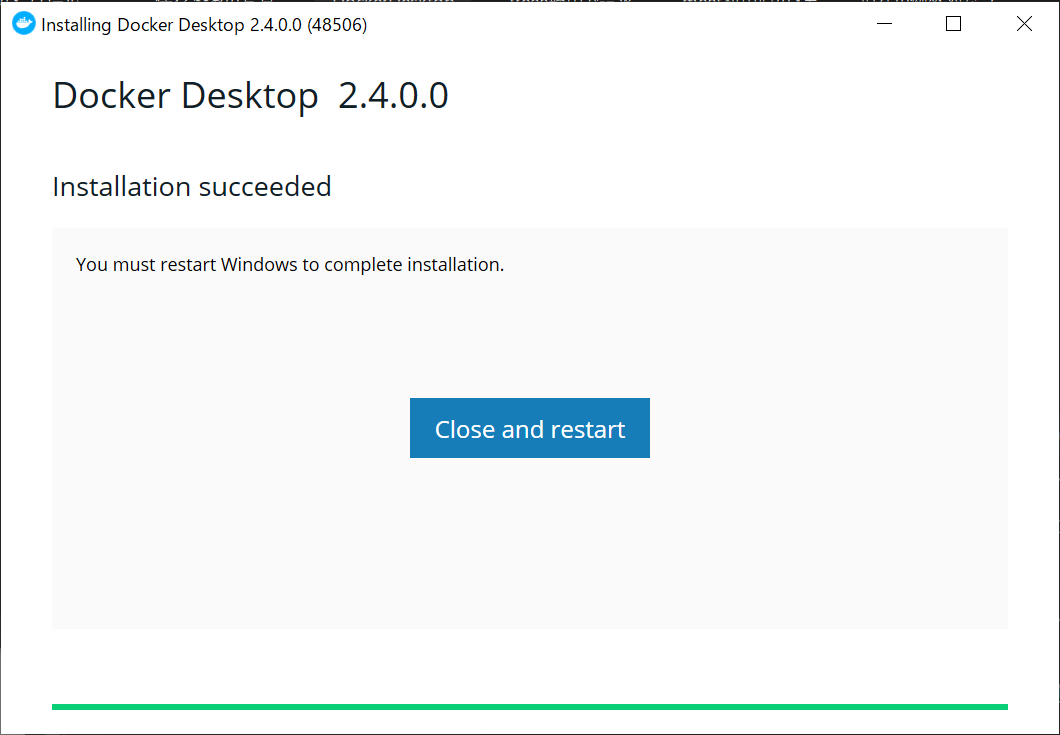
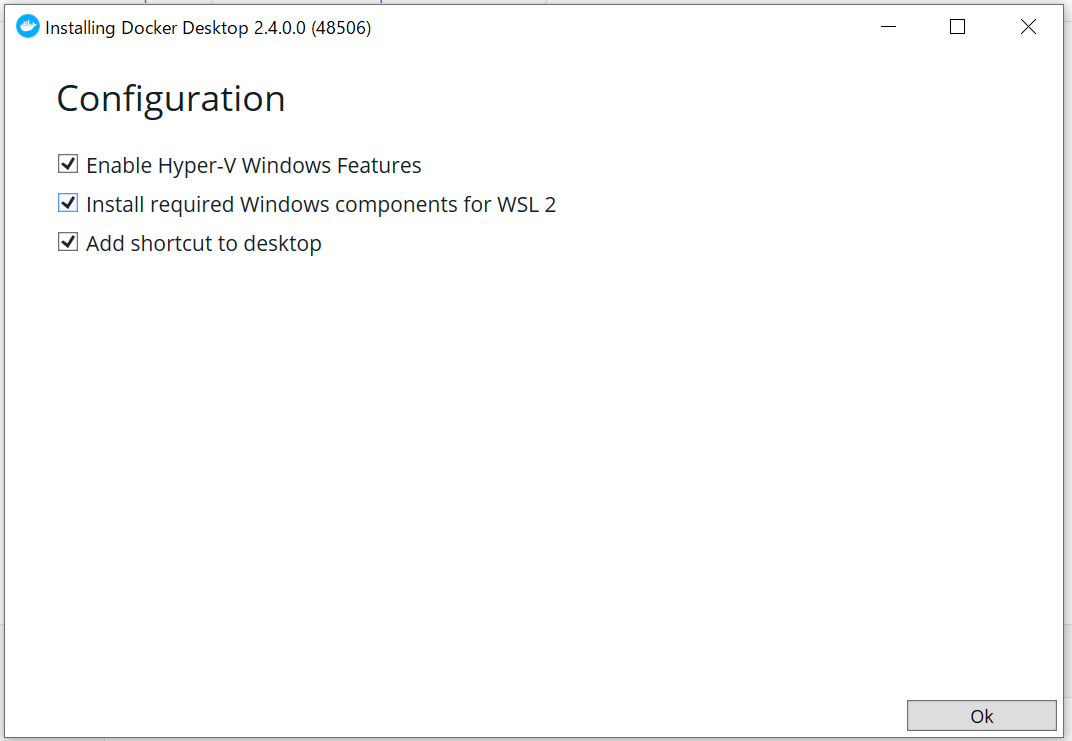
    ダウンロードしたインストーラー(EXEファイル)を実行する。インストールのときに、「Install required Windows components for WSL2」にチェックが入っているので、WSL2対応もばっちり。

    インストールが終わったら、Windows10の再起動が入る。

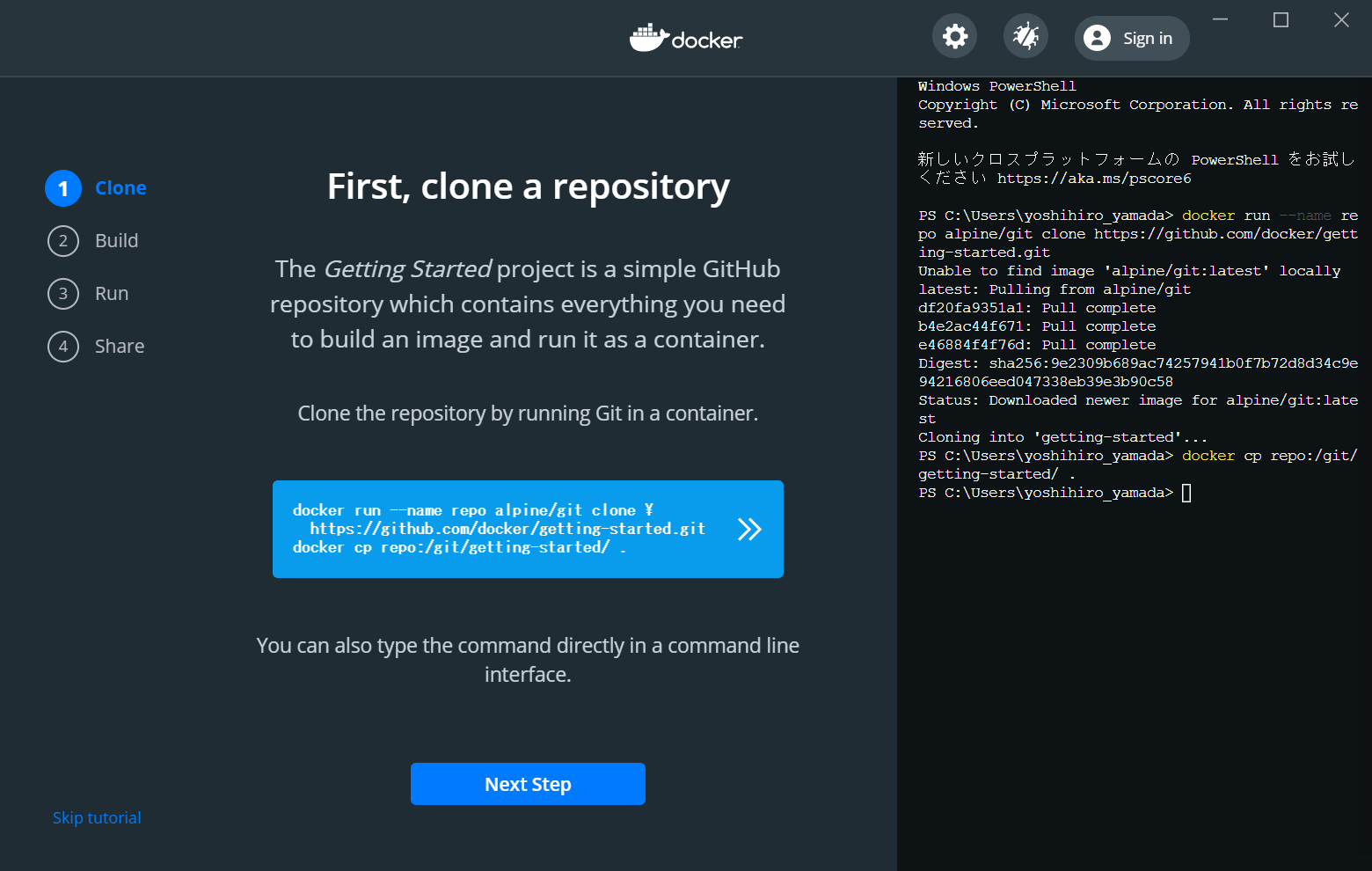
    で、なにをしたらいいのかわからないので、チュートリアルを実施。

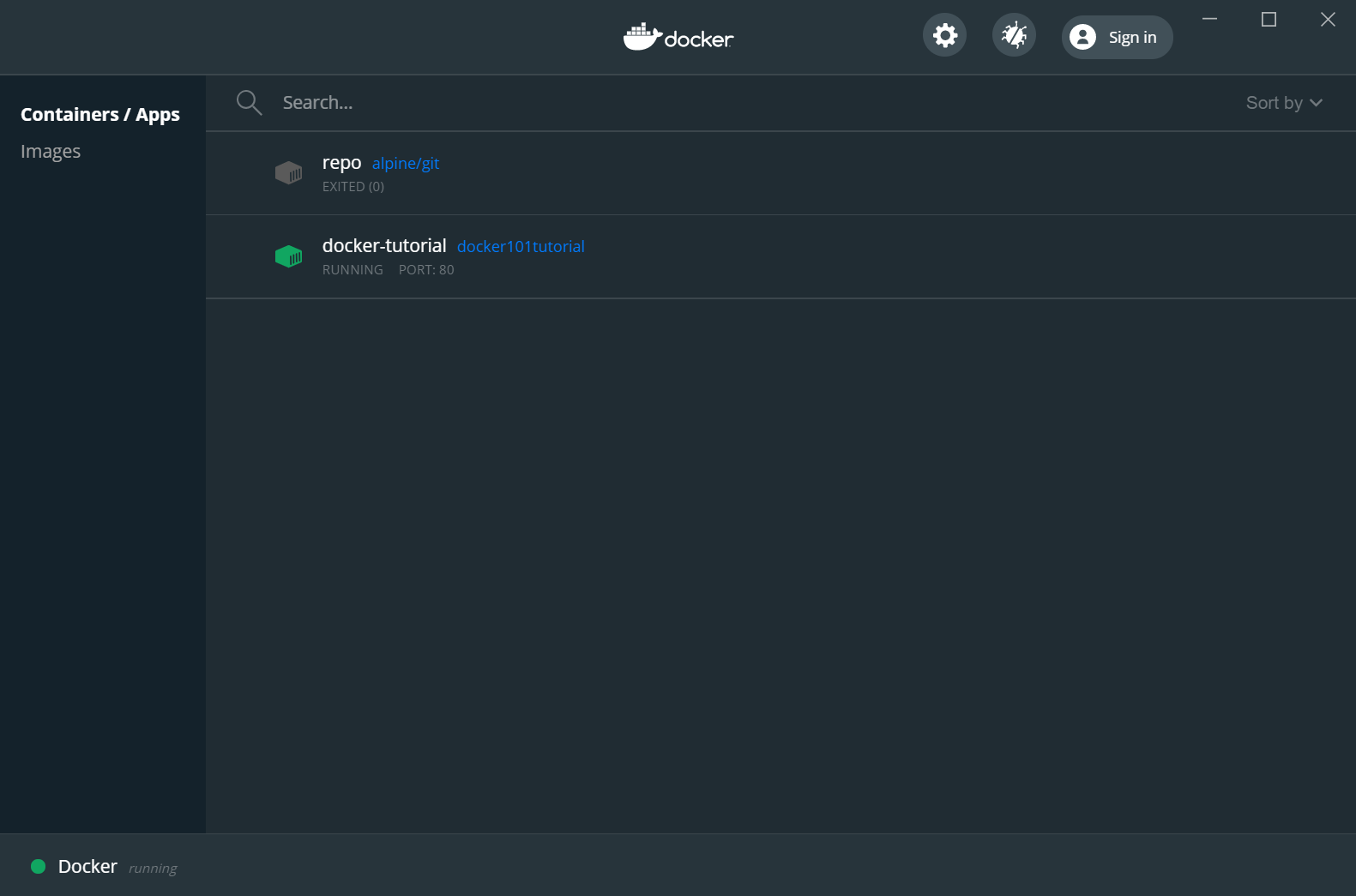
    チュートリアルの通りにやったら、チュートリアルのコンテナが立ち上がった。

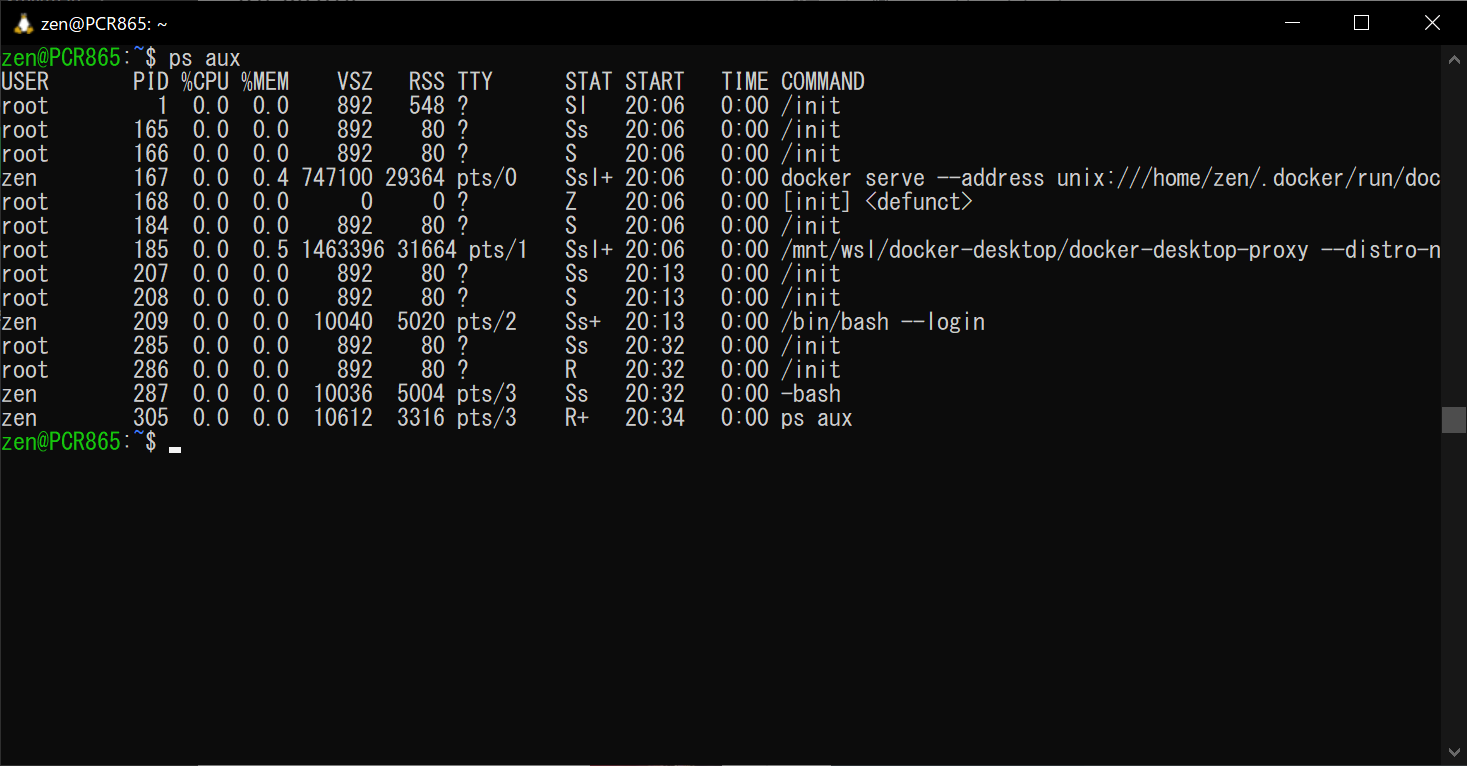
    このコンテナがどこで動いているのか気になって、WSL2のUbuntuでpsコマンドをたたいてみると、dockerに関連したプロセスが起動しているので、WSL2の上で動作していることが確認できた。

     root       185  0.0  0.5 1463396 31664 pts/1   Ssl+ 20:06   0:00 /mnt/wsl/docker-desktop/docker-desktop-proxy --distro-n 
  • ランチ:松屋の和風ステーキ丼

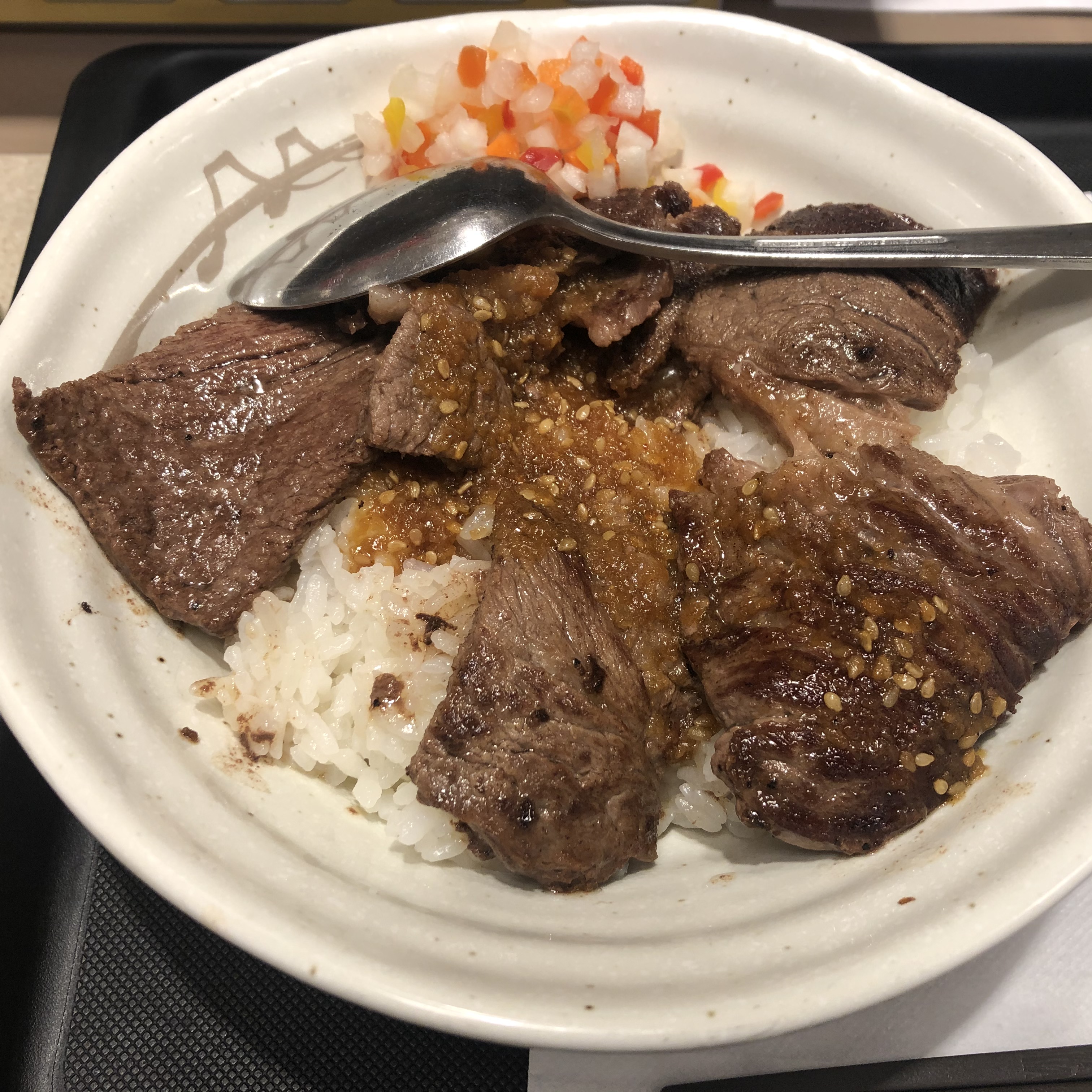
    松屋の和風ステーキ丼

    今日のランチは、松屋で、和風ステーキ丼。

    メニューの見た目と、出てきたものにかなりの乖離がある。とにかく盛り付けが汚い。味は、というと、美味しくない。まぁ、750円くらいだったので、期待はしていなかったけれど、思った以上にペラペラな肉。ステーキというよりも焼肉といった方がいいような感じ。タレも不均等にかかっているので、肉にタレがかかっていないところもあり、それも厳しい。これならば、牛丼にサイドをつけた方がよかった。牛丼以外は、やっぱきつい。

  • Windows 10 ver 20H2のIMEの予測変換がひどいのでオフにする

    Windows 10 Ver.20H2のIMEの予測変換がかなりひどいので、オフにしてみる。Ver.2004でもひどかったが、20H2はさらにひどい。IMEは止め時なのかもしれないが、選択肢がほぼないので、オフにして様子を見る。

    1. 右下のツールバーで、IMEを選んで、右クリックする(「A」か「あ」のアイコン)
    2. 「設定」を選ぶ
    3. 「全般」を選ぶ
    4. 「予測入力」の部分のプルダウンで、「オフ」を選択する

    これで、予測入力は使えなくなるが、誤変換や勝手に選択される問題もなくなる。

  • PHPのバージョンアップしたら、Nginxが起動しなくなった

    Ubuntu 18.04で、PHPをPHP7.2からPHP7.4にアップデートしたところ、作業後にOSを再起動したら、Nginxが起動しなくなった。原因を調べて対処したので、メモを残す。

    Nginxのステータスを確認したところ。

    ubuntu@ip-10-0-0-122:/etc/nginx$ sudo service nginx status
    ● nginx.service - A high performance web server and a reverse proxy server
       Loaded: loaded (/lib/systemd/system/nginx.service; enabled; vendor preset: enabled)
       Active: failed (Result: exit-code) since Wed 2020-10-14 22:35:23 PDT; 5s ago
         Docs: man:nginx(8)
      Process: 1296 ExecStartPre=/usr/sbin/nginx -t -q -g daemon on; master_process on; (code=exited, status=1/FAILURE)
    Oct 14 22:35:23 ip-10-0-0-122 systemd[1]: Starting A high performance web server and a reverse proxy server...
    Oct 14 22:35:23 ip-10-0-0-122 nginx[1296]: nginx: [emerg] "try_files" directive is duplicate in /etc/nginx/sites-enabled
    Oct 14 22:35:23 ip-10-0-0-122 nginx[1296]: nginx: configuration file /etc/nginx/nginx.conf test failed
    Oct 14 22:35:23 ip-10-0-0-122 systemd[1]: nginx.service: Control process exited, code=exited status=1
    Oct 14 22:35:23 ip-10-0-0-122 systemd[1]: nginx.service: Failed with result 'exit-code'.
    Oct 14 22:35:23 ip-10-0-0-122 systemd[1]: Failed to start A high performance web server and a reverse proxy server.
    ubuntu@ip-10-0-0-122:/etc/nginx$
    

    PHP7.4にアップデートしたタイミングで、Apacheがインストールされて、これが自動起動しており、Nginxと、ポート80の使用が競合して、Nginxが落ちていた。apache2の自動起動を停止する。

    sudo systemctl disable apache2
    

    それでも、まだ、Nginxの起動でエラーになる。ログを見ると、コンフィグの問題のようなので、configtestを実施し、見事にエラーになる。

    ubuntu@ip-10-0-0-122:/etc/nginx/sites-available$ sudo service nginx configtest
     * Testing nginx configuration                                                                                   [fail]
    ubuntu@ip-10-0-0-122:/etc/nginx/sites-available$
    

    Nginxのコンフィグのdefaultで、php7.2-fpmの部分を、php7.4-fpmのsockに書き換え。

    その後、Nginxの起動を試すが失敗。Nginxのコンフィグチェックを行って、エラーになっている行を特定。

    sudo nginx -t
    nginx: [emerg] "try_files" directive is duplicate in /etc/nginx/sites-enabled/default:77
    nginx: configuration file /etc/nginx/nginx.conf test failed
    

    “try_files” がダブっているというので、場所を確認して、変更した。なぜ、急にエラーになったのか、はあるが、とりあえず、スルー。修正後は、Nginxが無事に起動した。

    最初のStatusのログをみると、最初から”try_files ”が問題って書いてあった。おちついて、見る必要あり。

  • Windows10 October 2020 Updateが配信された

    Windows 10 October 2020 Update (Ver 20H2)が配信されたので、早速、VAIOにWindows 10に適用した。とりあえず、動作に問題はなし。

    春のとき(Ver 2004)に廃止されていた大型アップデートを遅らせるためのGUIの画面は復活せず。それは、もう、グループポリシーで設定するしかないようだ。

    あと、Ver.20H2にすることで、EdgeがChromiumベースのEdgeに置き換わった。なので、個別にアップデートをしなくても、October 2020 Updateを入れるだけで、Edgeの更新ができる。これは管理する側からすると楽。

    バージョンは、今回は20H2となっている。これは、全部数字にすると、2010になるので、紛らわしくなるので、変えたとのこと。

    https://forest.watch.impress.co.jp/docs/news/1284147.html

  • UbuntuのPHPを7.2から、7.4にしてみた

    Ubuntu 18.04のPHPをPHP7.2からPHP7.4に上げた。PHPを使っているのは、Wordpress。そのメモ。でも、途中が消えてる気がする、というか消えてる。

    ubuntu@ip-10-0-0-122:~$ php -v
    PHP 7.2.24-0ubuntu0.18.04.7 (cli) (built: Oct  7 2020 15:24:25) ( NTS )
    Copyright (c) 1997-2018 The PHP Group
    Zend Engine v3.2.0, Copyright (c) 1998-2018 Zend Technologies
        with Zend OPcache v7.2.24-0ubuntu0.18.04.7, Copyright (c) 1999-2018, by Zend Technologies
    ubuntu@ip-10-0-0-122:~$
    ubuntu@ip-10-0-0-122:~$ sudo apt install software-properties-common
    Reading package lists... Done
    Building dependency tree
    Reading state information... Done
    software-properties-common is already the newest version (0.96.24.32.14).
    software-properties-common set to manually installed.
    The following packages were automatically installed and are no longer required:
      libdumbnet1 libnginx-mod-http-geoip libnginx-mod-http-image-filter libnginx-mod-http-xslt-filter libnginx-mod-mail
      libnginx-mod-stream linux-aws-5.3-headers-5.3.0-1017 linux-aws-5.3-headers-5.3.0-1019
      linux-aws-5.3-headers-5.3.0-1023 linux-aws-5.3-headers-5.3.0-1028 linux-aws-5.3-headers-5.3.0-1030
      linux-aws-5.3-headers-5.3.0-1032 linux-aws-5.3-headers-5.3.0-1033 linux-aws-5.3-headers-5.3.0-1034
      linux-aws-5.3-headers-5.3.0-1035 linux-aws-headers-4.15.0-1041 linux-aws-headers-4.15.0-1043
      linux-aws-headers-4.15.0-1044 linux-aws-headers-4.15.0-1045 linux-aws-headers-4.15.0-1047
      linux-aws-headers-4.15.0-1048 linux-aws-headers-4.15.0-1050 linux-aws-headers-4.15.0-1052
      linux-aws-headers-4.15.0-1054 linux-aws-headers-4.15.0-1056 linux-aws-headers-4.15.0-1057
      linux-aws-headers-4.15.0-1058 linux-aws-headers-4.15.0-1060 linux-aws-headers-4.15.0-1063
      linux-aws-headers-4.15.0-1065 linux-headers-5.3.0-1035-aws linux-image-5.3.0-1035-aws linux-modules-5.3.0-1035-aws
      nginx-common nginx-core
    Use 'sudo apt autoremove' to remove them.
    0 upgraded, 0 newly installed, 0 to remove and 0 not upgraded.
    ubuntu@ip-10-0-0-122:~$
    ubuntu@ip-10-0-0-122:~$
    ubuntu@ip-10-0-0-122:~$
    ubuntu@ip-10-0-0-122:~$ sudo add-apt-repository ppa:ondrej/php
     Co-installable PHP versions: PHP 5.6, PHP 7.x and most requested extensions are included. Only Supported Versions of PHP (http://php.net/supported-versions.php) for Supported Ubuntu Releases (https://wiki.ubuntu.com/Releases) are provided. Don't ask for end-of-life PHP versions or Ubuntu release, they won't be provided.
    Debian oldstable and stable packages are provided as well: https://deb.sury.org/#debian-dpa
    You can get more information about the packages at https://deb.sury.org
    IMPORTANT: The -backports is now required on older Ubuntu releases.
    BUGS&FEATURES: This PPA now has a issue tracker:
    https://deb.sury.org/#bug-reporting
    CAVEATS:
    1. If you are using php-gearman, you need to add ppa:ondrej/pkg-gearman
    2. If you are using apache2, you are advised to add ppa:ondrej/apache2
    3. If you are using nginx, you are advised to add ppa:ondrej/nginx-mainline
       or ppa:ondrej/nginx
    PLEASE READ: If you like my work and want to give me a little motivation, please consider donating regularly: https://donate.sury.org/
    WARNING: add-apt-repository is broken with non-UTF-8 locales, see
    https://github.com/oerdnj/deb.sury.org/issues/56 for workaround:
    # LC_ALL=C.UTF-8 add-apt-repository ppa:ondrej/php
     More info: https://launchpad.net/~ondrej/+archive/ubuntu/php
    Press [ENTER] to continue or Ctrl-c to cancel adding it.
    Hit:1 http://us-east-1.ec2.archive.ubuntu.com/ubuntu bionic InRelease
    Get:2 http://us-east-1.ec2.archive.ubuntu.com/ubuntu bionic-updates InRelease [88.7 kB]
    Get:3 http://us-east-1.ec2.archive.ubuntu.com/ubuntu bionic-backports InRelease [74.6 kB]
    Get:4 http://ppa.launchpad.net/ondrej/php/ubuntu bionic InRelease [20.8 kB]
    Get:5 http://security.ubuntu.com/ubuntu bionic-security InRelease [88.7 kB]
    Get:6 http://ppa.launchpad.net/ondrej/php/ubuntu bionic/main amd64 Packages [71.9 kB]
    Get:7 http://ppa.launchpad.net/ondrej/php/ubuntu bionic/main Translation-en [29.5 kB]
    Fetched 374 kB in 1s (398 kB/s)
    Reading package lists... Done
    ubuntu@ip-10-0-0-122:~$
    ubuntu@ip-10-0-0-122:~$
    ubuntu@ip-10-0-0-122:~$ sudo apt update
    Hit:1 http://us-east-1.ec2.archive.ubuntu.com/ubuntu bionic InRelease
    Get:2 http://us-east-1.ec2.archive.ubuntu.com/ubuntu bionic-updates InRelease [88.7 kB]
    Get:3 http://us-east-1.ec2.archive.ubuntu.com/ubuntu bionic-backports InRelease [74.6 kB]
    Hit:4 http://ppa.launchpad.net/ondrej/php/ubuntu bionic InRelease
    Hit:5 http://security.ubuntu.com/ubuntu bionic-security InRelease
    Fetched 163 kB in 0s (399 kB/s)
    Reading package lists... Done
    Building dependency tree
    Reading state information... Done
    20 packages can be upgraded. Run 'apt list --upgradable' to see them.
    ubuntu@ip-10-0-0-122:~$
    ubuntu@ip-10-0-0-122:~$ php -v
    PHP 7.4.11 (cli) (built: Oct 10 2020 19:44:50) ( NTS )
    Copyright (c) The PHP Group
    Zend Engine v3.4.0, Copyright (c) Zend Technologies
        with Zend OPcache v7.4.11, Copyright (c), by Zend Technologies
    ubuntu@ip-10-0-0-122:~$
    

    このあと、Nginxのコンフィグで、php7.2-fpmからphp7.4-fpmに指定を変更して、Nginxを再起動。

    WordPressにアクセスしたら、php7.4-mysqlが入っていないと言われ、使えず。aptでインストールする。

    sudo apt install php7.4-mysql

    そのあと、Wordpressのヘルスチェックを確認。gdもないというので、aptでインストール。

    sudo apt install php7.4-gd

    これでバージョンアップは終わり。

  • 夕焼けと富士山

    夕焼けと富士山

    今日は天気がよかったためか、夕焼け時に富士山が観れた。シルエットだけど、見えると嬉しい。